MX Keys S Series — Day 6 | Tutorial
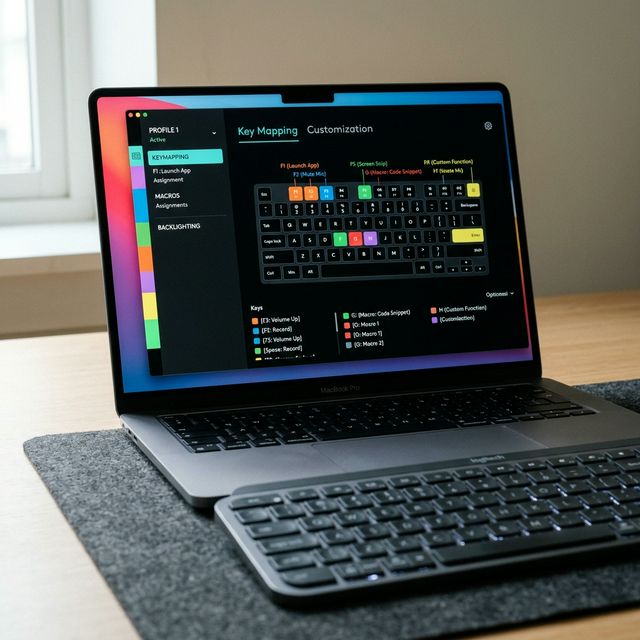
Most people install Logi Options+, change one key, and close it. They’re leaving 80% of what makes the MX Keys S special sitting untouched in a menu they’ve never opened.
This guide goes through every major feature — what it does, why it matters, and the exact settings worth configuring on day one.
Getting Started
Install: logitech.com/optionsplus
Logi Options+ requires a background process to be running to apply customizations. If you’re concerned about startup resources, add it to startup apps on a delay of 10–15 seconds. It’s lightweight (~50MB RAM) but it must be running.
Once installed, your MX Keys S will appear in the home screen. Click it to access all settings.
1. Key Remapping
Where: Keys tab → Select any displayed key → Change Assignment
Every key on the MX Keys S is remappable, including the function row. To remap:
- Click on the key you want to change in the on-screen keyboard diagram.
- Choose from: Keystroke, Action, System Command, App-Specific, or Disable.
- Click Save.
Best remaps for productivity:
| Default Key | Remap To | Why |
|---|---|---|
| Dictation Key (F5) | Mute/Unmute mic | Perfect for quick call muting |
| Emoji Key (F6) | Paste as plain text | Removes formatting when pasting |
| Screen Capture (F7) | Open Task Manager / Activity Monitor | Fast access to system health |
Insert (Ins) | Paste without formatting | Rarely used in its original function |
Pro tip: Remap keys differently per application using App Profiles (covered in section 3).
2. Backlight Settings
Where: Keyboard tab → Backlight Options
This is where you control how much battery you burn.
Illumination Duration: How long the backlight stays on after your last keypress. Default is 30 seconds. Set to 15 seconds if you want to extend battery — or “Never” if you don’t often work in the dark (battery jumps from 10 days to 5 months).
Smart Illumination: Toggle the proximity sensor. When on, the backlight wakes briefly as your hands approach — before you even press a key. This is the feature that makes the MX Keys S feel genuinely smart. Leave it on.
Brightness: The default is medium. Drop it one step in bright rooms — same visibility, less battery drain.
Recommended settings:
- Smart Illumination: On
- Duration: 15–20 seconds
- Brightness: Medium or Low
3. App-Specific Profiles
Where: Keys tab → Top right corner → “Add Application”
This is the most underused power feature. Logi Options+ lets you define different key behaviors per app — the keyboard knows which program is in focus and silently remaps accordingly.
Setting up a profile:
- Click “Add Application” in the top right.
- Browse and select the application (e.g., Zoom).
- Your keyboard diagram now shows that app’s icon.
- Select any key and remap it specifically for this app.
- Switch to a different app in the list to keep other mappings separate.
Recommended profiles:
Zoom:
- F5 → Mute/Unmute Audio
- F6 → Start/Stop Video
- F7 → Share Screen
Slack:
- F5 → Mark All as Read (keystroke: Shift+Esc)
- F6 → Jump to Next Unread (keystroke: Alt+↓)
VS Code:
- F5 → Run / Debug (already default, verify it works)
- F6 → Format Document (keystroke: Shift+Alt+F)
- F7 → Toggle Terminal (keystroke: Ctrl+`)
Chrome:
- F5 → Reload Page (already default)
- F6 → Open DevTools (keystroke: F12)
4. Logi Flow — Type Across Two Computers
Where: Point & Flow tab (requires an MX Master 2S, 3, or 3S mouse)
Logi Flow is the MX ecosystem’s most impressive trick. When your MX Master mouse is also connected and Flow is enabled:
- Move your mouse cursor to the edge of one monitor.
- The cursor “flows” to a second computer’s screen.
- Your MX Keys S automatically switches to type on whichever computer the mouse cursor is on.
- Clipboard content copies between computers — copy text on your Mac, paste on your Windows machine.
Requirements:
- MX Keys S (or any Flow-compatible Logitech keyboard)
- MX Master 2S / 3 / 3S mouse
- Both computers on the same Wi-Fi network
- Logi Options+ installed and signed in on both machines
Setup:
- Open Logi Options+ on both computers.
- Sign in with the same Logitech account.
- Go to Point & Flow → Enable Logi Flow.
- On both machines, approve the connection when prompted.
This feature alone justifies the Logi ecosystem investment for multi-machine workers.
5. Clipboard Manager
Where: Clipboard tab (available in recent Options+ versions)
Logi Options+ includes a basic clipboard history manager that stores your last 10 clipboard items. Press the designated shortcut (customizable, default Fn + C) to open a popup showing recent clipboard entries.
It’s not as powerful as a dedicated clipboard manager (like Paste for Mac or Ditto for Windows), but for quick access to the last few copied items without installing extra software, it works well.
6. Battery Monitoring
Where: Home screen → Click on your MX Keys S
Logi Options+ shows your current battery level. It’s accurate only ±10%, which means:
- When it says 20% → you likely have 10–30%.
- When it hits 10% → charge within the next day or two.
You’ll also get OS-level notifications when battery drops below 15% and 5%. Do not ignore the 5% warning — the keyboard can die mid-sentence with little further notice.
Best practice: Plug in every Sunday night via USB-C. Done.
7. Firmware Updates
Where: Home screen → Three-dot menu next to your keyboard → “Check for updates”
Logitech periodically releases firmware updates that improve stability, Bluetooth connectivity, and occasionally add new features. Check for updates whenever:
- You’re experiencing a bug or inconsistent behavior.
- You’ve updated your OS to a new major version.
- You haven’t updated in 3–4 months.
The update process takes about 2 minutes. The keyboard reboots once automatically.
Quick Reference: Key Shortcuts Inside Logi Options+
| Action | How |
|---|---|
| Switch OS mode (macOS ↔ Windows) | Hold Fn + O (macOS) or Fn + P (Windows) for 3 sec |
| F-keys as function keys | Toggle in Keyboard tab |
| Check battery level | Home screen of Options+ |
| Enable Flow | Point & Flow tab |
| Per-app key remapping | Keys tab → Add Application |
Final Thought
Logi Options+ is genuinely one of the better peripheral software suites — it’s stable, not bloated, and the app-specific profiles make the MX Keys S feel like a different keyboard in every app it detects.
Take 20 minutes today to set up 2–3 app profiles. A week later, you’ll be reaching for those remapped keys automatically without thinking.
Disclosure: Links in this article are Amazon Affiliate links. I may earn a small commission if you purchase through them — at no extra cost to you. All opinions are my own.
无话可说,只是看看