MX Keys S Series — Day 7 | Use Case Guide
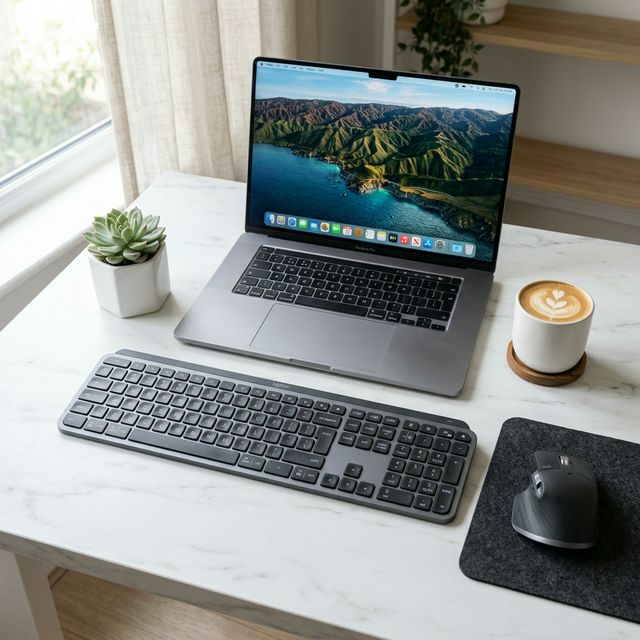
The MX Keys S is not a Mac keyboard. Logitech makes it compatible with Windows, Linux, ChromeOS, and iPadOS. But in practice, on a Mac, it behaves better than most keyboards that claim to be designed specifically for Apple.
Here’s everything you need to know to get the most out of the MX Keys S on macOS — from the first connection to advanced multi-device workflows.
Step 1: Connect & Switch to macOS Mode
After pairing via Bluetooth or Logi BOLT (see
Day 5 — Setup Guide), the first thing to check is your OS mode.
The MX Keys S ships with dual-printed keycaps (e.g., opt | start, cmd | alt). It will usually detect your OS automatically, but if you see Windows key labels behaving incorrectly, force macOS mode:
Hold
Fn + Ofor 3 seconds.
You’ll see the backlight flash briefly. The keyboard is now in macOS mode — Command, Option, and Control will map correctly.
To switch back to Windows mode: Hold Fn + P for 3 seconds.
Step 2: Understanding the Mac Key Layout
On a standard Apple keyboard, the bottom-left modifier row reads: Control — Option — Command
On the MX Keys S in macOS mode, it reads: Ctrl — Alt (= Option) — Win (= Command)
They function identically once in macOS mode. But if you switch between a Mac keyboard and the MX Keys S frequently, muscle memory adaptation takes a few days.
Common Mac shortcuts on the MX Keys S:
| Mac Action | MX Keys S Shortcut |
|---|---|
| Copy | Win + C |
| Paste | Win + V |
| Spotlight Search | Win + Space |
| Mission Control | Ctrl + ↑ |
| Switch App | Win + Tab |
| Force Quit | Win + Option + Esc |
| Screenshot | Win + Shift + 4 |
| Lock Screen | Ctrl + Win + Q |
Step 3: Configure Function Keys for macOS
On macOS, the F1–F12 row controls system features (brightness, volume, etc.) by default. You have two options:
Option A — Keep media keys as default (recommended for most Mac users): In Logi Options+, leave “Use F1-F12 as standard function keys” unchecked. Pressing F1 lowers brightness, F10 mutes audio, etc. Hold Fn for the standard F1-F12 behavior (useful for IDE shortcuts like F5 to debug).
Option B — Standard function keys as default (recommended for developers): In Logi Options+, check “Use F1-F12 as standard function keys.” Now F5 runs your debugger, F12 opens definitions, etc. Hold Fn to access media controls.
Step 4: Set Up macOS-Specific Shortcuts in Logi Options+
Open Logi Options+ → Keys tab. These are the most valuable remaps for Mac users:
Dictation Key (default on the top row): → Remap to “Do Not Disturb” toggle, or keep as Dictation if you use Siri dictation regularly.
Emoji Key: → Remap to Win + Ctrl + Space to open Apple’s Emoji & Symbols picker natively.
Screen Capture Key: → Change to Win + Shift + 5 to open macOS’s full screenshot toolbar (with screen recording options).
Mission Control shortcut: → Map an unused key to Ctrl + ↑ for instant Mission Control access — useful if you don’t have a Magic Trackpad.
Step 5: Connect Your iPad as Device 2
One of the best Mac + MX Keys S combinations is adding an iPad as a second device for reading docs, browsing references, or taking notes during calls.
- Press and hold Easy-Switch 2 until it blinks.
- On your iPad, go to Settings → Bluetooth → Pair “MX Keys S”.
- Done.
Now press Easy-Switch 1 to type on your Mac, Easy-Switch 2 to type on your iPad. The switch is seamless.
Recommended iPad use cases:
- Reading documentation while coding on the Mac
- Taking handwritten-to-typed notes during meetings
- Browsing/reading while keeping the Mac screen dedicated to work
Step 6: Enable Logi Flow for Mac + Second Computer
If you have a second Mac or a Windows machine, Logi Flow turns the MX Keys S into a single keyboard that types across both computers — including clipboard sharing.
Requirements:
- Logi Options+ installed and signed in on both computers
- MX Master 2S, 3, or 3S mouse also connected
- Both machines on the same Wi-Fi network
Setup:
- Open Logi Options+ on both machines.
- Sign into the same Logitech account on both.
- Go to Point & Flow tab → Enable Flow on both.
- Approve the connection when prompted.
- Move your mouse cursor to the edge of your screen — it flows to the second computer, and the keyboard follows automatically.
Full walkthrough in
Day 13 — Logi Flow: Copy-Paste Between 2 Computers.
Battery Tips for Mac Users
macOS does not show the MX Keys S battery in the menu bar natively (unlike Apple peripherals). Check battery level in Logi Options+ app.
Best practice: Plug in via USB-C once a week (Sunday evenings work perfectly). With Smart Backlight on, real-world battery life is 12–15 days. Without backlight: 5 months.
You can also check battery level quickly by pressing Fn + F7 on some firmware versions — the keyboard blinks to indicate approximate level.
Known macOS Quirks & Fixes
| Issue | Fix |
|---|---|
| Cmd/Option keys swapped | Hold Fn + O for 3 sec to set macOS mode |
| Keyboard disconnects after sleep | Go to System Settings → Bluetooth → MX Keys S → set “Allow Bluetooth to wake this device” |
| Function keys not working as expected | Check Logi Options+ → “Use F1–F12 as standard function keys” toggle |
| Backlight doesn’t turn on | Check Settings → Accessibility → ensure no power-saving is disabling USB/Bluetooth |
| Can’t type on Mac while iPad is connected | Press Easy-Switch 1 to return to the Mac connection |
Final Word for Mac Users
The MX Keys S on macOS is, in practice, a near-perfect non-Apple keyboard. The layout adaptation is minimal, the macOS mode works reliably, and the multi-device switching with an iPad as Device 2 is genuinely transformative.
The only things Apple’s own Magic Keyboard does better: Touch ID authentication and zero-setup native integration. If those aren’t essential for you, the MX Keys S is the smarter buy.
Disclosure: Links in this article are Amazon Affiliate links. I may earn a small commission if you purchase through them — at no extra cost to you. All opinions are my own.