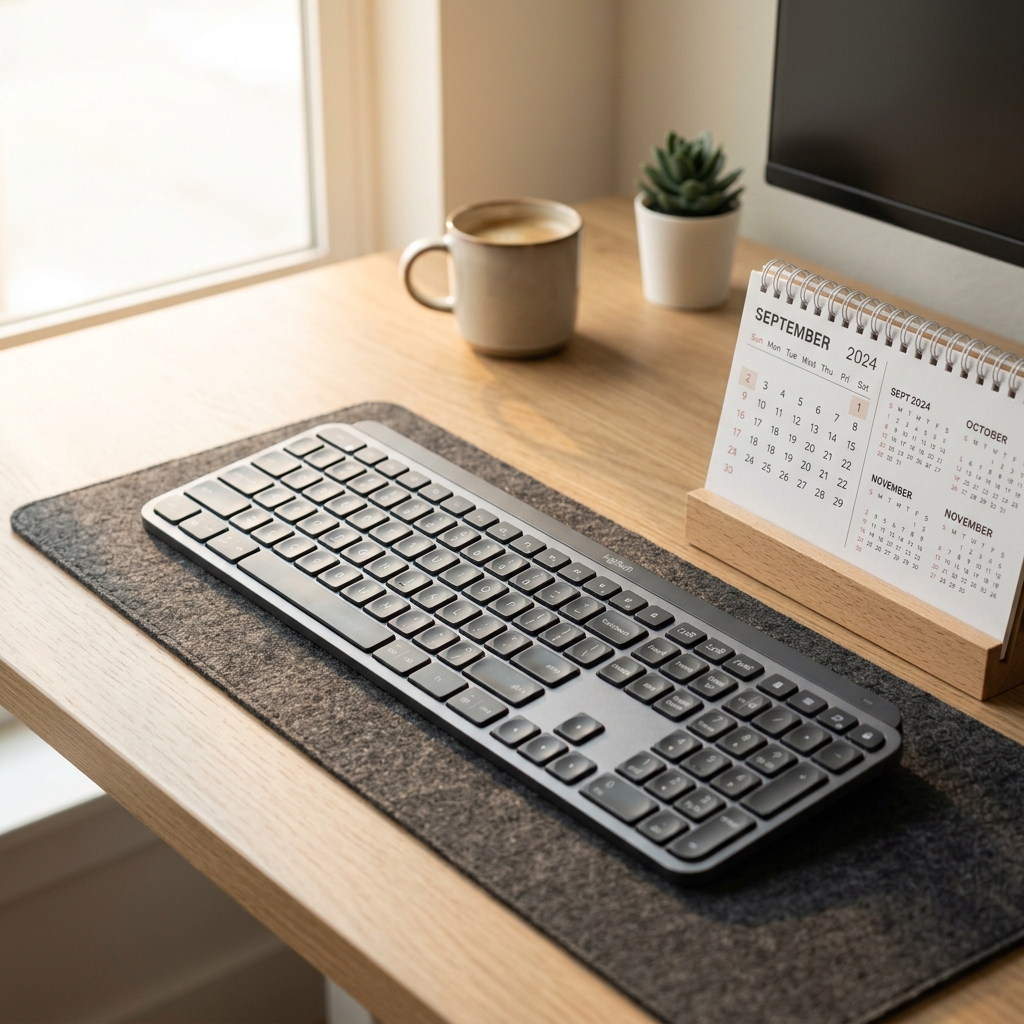
Logitech claims up to 10 days with backlighting on and 5 months with it off. If you’ve been getting far less than that, you’re probably making at least one of the mistakes in this guide.
Here’s every setting, habit, and trick that will maximize MX Keys S battery life — from the obvious to the ones buried deep in Logi Options+.
First: Understand What Drains the Battery
The MX Keys S uses a 1500 mAh lithium-ion battery — the same capacity as many phones from a decade ago. It powers three things:
| Component | Impact on Battery |
|---|---|
| Backlight LEDs | 🔴 Highest — cuts life from months to days |
| Wireless radio (Bluetooth / BOLT) | 🟡 Medium — transmitting constantly while typing |
| Standby drain | 🟢 Very low — keyboard auto-sleeps efficiently |
The backlight is by far the biggest factor. Every tip below addresses one of these three areas.
Tip 1: Use Smart Backlight Instead of Always-On
This is the single biggest change you can make.
The MX Keys S has “Smart Illumination” — the backlight only activates when your hands are near the keys (detected by proximity sensors built into the chassis), then fades when you stop.
How to enable it:
- Open Logi Options+
- Go to Point & Flow → Backlight
- Set Illumination Mode to “Smart Illumination” (not “Always On”)
With Smart Illumination: ~10 days battery life. With Always On: ~5–7 days, sometimes less.
If you want to go further, set Illumination Timeout to 3 seconds (the minimum). The backlight will fade almost immediately when your hands leave the keys.
Tip 2: Lower the Backlight Brightness
Most users never touch this setting, but it makes a significant difference.
Default brightness is 100%. In practice, 40–60% is perfectly readable and doubles effective backlight-on time.
How to adjust:
- Keyboard shortcut:
Fn + F6(decrease) /Fn + F7(increase) - In Logi Options+: Backlight → Brightness slider
Set it once and forget it. If you’re in a bright room, 50% is still clearly visible. At your desk at night, 30% is comfortable.
Pro tip: If you primarily type in a well-lit office, you can turn the backlight completely off (
Fn + F6all the way down). This single change extends battery from 10 days to 5 months.
Tip 3: Switch to Logi BOLT Instead of Bluetooth
Most people don’t know this: Logi BOLT (the USB dongle) is more power-efficient than Bluetooth LE for the keyboard.
Bluetooth on a Mac or PC requires your computer’s Bluetooth radio to stay active and poll the keyboard continuously. The BOLT dongle handles this communication at the hardware level, offloading the processing from both devices.
Real-world result: BOLT users consistently report ~10–15% better battery life compared to Bluetooth connections.
How to switch:
- Plug the BOLT dongle into a USB-A port (or USB-A to USB-C adapter)
- Hold Easy-Switch 1 until it blinks fast (pairing mode)
- Open Logi Options+ → Add Device → follow prompts
After pairing, press Easy-Switch 1 once to use BOLT. Your Bluetooth slots (2 and 3) remain available for other devices.
Tip 4: Set an Aggressive Auto-Sleep Timer
The MX Keys S goes to sleep automatically after inactivity — but the default timeout may be longer than you need.
How to check/change it:
- Open Logi Options+
- Go to keyboard Settings
- Find “Power Off After” or “Sleep Timer”
- Set to 5 minutes (the minimum available)
During meetings, lunch breaks, or any time you step away from your desk, the keyboard will go to sleep within 5 minutes and consume virtually no battery.
To wake it: press any key. It reconnects in under 1 second.
Tip 5: Turn Off Unused Device Slots
If you only use the MX Keys S with one computer, disable Easy-Switch slots 2 and 3. Active (even unpaired) Bluetooth channels consume a small but measurable amount of standby power as they listen for pairing requests.
You can’t fully “disable” individual channels from the keyboard itself, but you can minimize their drain by pairing all three slots and only switching to active devices. An idle paired connection uses less power than an active-searching unpaired one.
Tip 6: Keep the Firmware Updated
Battery management software improves with firmware updates. Logitech has released several updates for the MX Keys S that specifically addressed power efficiency bugs.
How to update:
- Open Logi Options+
- Click your MX Keys S device card
- If an update is available, you’ll see a notification badge → click Update
Updates take ~2 minutes and the keyboard stays functional throughout (wired via USB-C).
Tip 7: Avoid Leaving It on USB-C Long-Term
The MX Keys S uses a lithium-ion battery, and like all Li-ion batteries, it degrades faster if kept at 100% charge continuously.
Best practice: Charge it once a week (or when it drops below ~30%), then unplug it. Don’t use it permanently plugged in as a wired keyboard — the constant trickle charge stresses the battery over months.
If you must use it wired, do it for a few hours during the day, then unplug when charged.
Tip 8: Check Battery Level Before It Dies
The MX Keys S doesn’t have a visible battery indicator on the keyboard (unlike some competitors). Your options:
| Method | How |
|---|---|
| Logi Options+ | Open app → Device card shows % level with icon |
| macOS | Does not show natively in menu bar |
| Windows | May appear in Bluetooth settings for BOLT users |
| Keyboard blink | Press Fn + F7 — keyboard blinks to indicate approximate charge |
The Fn + F7 blink method:
- 3 blinks = High (>60%)
- 2 blinks = Medium (30–60%)
- 1 blink = Low (<30%)
- Rapid blinks = Critical — charge now
Set a weekly Sunday reminder to check and charge. That habit alone will mean you never run out mid-workday.
Real-World Battery Expectations
Based on typical usage patterns:
| Usage Pattern | Expected Battery Life |
|---|---|
| Backlight always on, 100% brightness | 5–7 days |
| Smart Illumination, 60% brightness | 10–14 days |
| Smart Illumination, 30% brightness | 20–30 days |
| Backlight fully off | 4–5 months |
| Backlight off + BOLT (not Bluetooth) | Closer to 5 months |
Heavy typists (8+ hours/day) will be at the lower end. Light users (2–4 hours/day with the rest in sleep mode) will hit the higher estimates.
The 5-Month Setup: Exact Configuration
If 5 months is your goal, here’s the exact setup:
- ✅ Connect via BOLT dongle (not Bluetooth)
- ✅ Backlight: Off (
Fn + F6all the way down) - ✅ Sleep timer: 5 minutes (in Logi Options+)
- ✅ Firmware: Latest version
- ✅ Charge weekly — don’t leave on USB-C overnight
With this configuration, most users report 4–5 months between charges, matching Logitech’s official claim.
The Balanced Setup: Best of Both Worlds
If you want backlighting but still great battery life:
- ✅ Connect via BOLT
- ✅ Smart Illumination: On, timeout at 3 seconds
- ✅ Brightness: 40%
- ✅ Sleep timer: 5 minutes
Expected battery life: 2–3 weeks per charge. Charge every other Sunday and you’ll rarely think about it.
Summary: Quick Reference
| Setting | For Max Battery | For Balanced |
|---|---|---|
| Backlight | Off | Smart, 40% |
| Connection | BOLT | BOLT |
| Sleep timer | 5 min | 5 min |
| Charge habit | Monthly | Bi-weekly |
Disclosure: Links in this article are Amazon Affiliate links. I may earn a small commission if you purchase through them — at no extra cost to you. All opinions are my own.